Devices
Small business printers and scanning
Choosing office printing equipment begins with documents, people and workflow, not a headline pages-per-minute figure.
Choose office printing equipment by documents, people and workflow, not a headline pages-per-minute figure. Count what the business prints and scans, where staff work, how confidential the material is and who maintains the device.
A small team printing invoices and scanning signed forms differs from one producing colour proofs or processing paper stacks daily.
Measure work before comparing machines
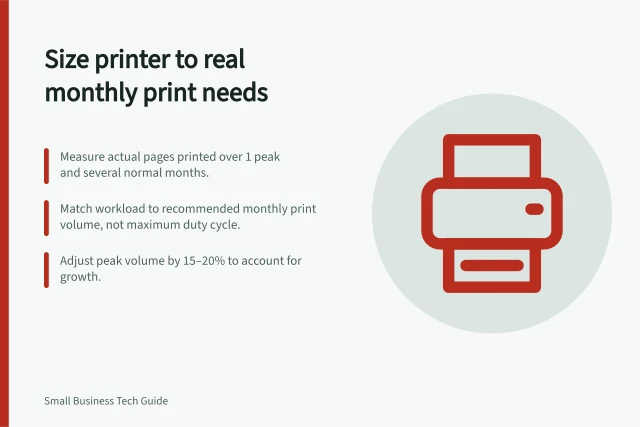
Review several typical months, including a busy one. Separate black-and-white pages, colour pages, duplex work, unusual paper sizes and large jobs.
For scanning, count sheets and document types. Note whether staff need two-sided capture, automatic feeding, searchable text or direct delivery to an approved repository. A device advertised for high volume may be poor value if most jobs are rare.
A cheap device may become expensive once consumables and interruptions are included. Estimate total running cost using the business's expected page mix: hardware, consumables at realistic yield, service, replacement parts and staff time.
Do not apply a generic cost-per-page claim without checking its test basis. Try a representative stack and print job before committing where a trial is possible.
Match the device class to the workload
Entry-level print-only lasers suit low volumes. The HP LaserJet Pro M102w is rated at up to 23 pages per minute, with first page out in just under 8 seconds. It has a 150-sheet input tray, dual-band 802.11n wireless and auto-on/auto-off power management.
The HP Color LaserJet Pro M254dw prints up to 22 pages per minute in black or colour from a 250-sheet auto-duplexing tray, and allows direct printing from USB. The HP Color LaserJet Pro MFP M180nw all-in-one prints at up to 17 pages per minute and adds colour and mono copying plus scanning.
Ink-tank models such as the Epson EcoTank Photo ET-8550 use refillable high-capacity tanks to reduce running costs and print up to A3+ for colour graphics. Monochrome laser all-in-ones such as the Brother MFC-L2820DW target fast text documents with built-in scanning, copying and faxing. In-house printing of compliance labels is a separate device class.
Other models to compare include the Brother HL-L3280CDW, a colour laser for business documents and presentations with wireless and mobile printing. The HP Smart Tank 5105 is an ink-tank all-in-one with copying and scanning.
The Epson WorkForce Pro WF-3825 is a multifunction inkjet with scanning, copying and cloud connectivity. The Epson WorkForce Pro WF-4830 is described as a reliable workhorse, though bulky.
The Brother MFC-J4335DW is another named option for documents or photos. These model names provide starting points for matching device class and features to the workload; compare current availability and fit before choosing.
Top 5 HP Laser Printers for Small Businesses (2026)
- HP LaserJet Pro M102wLow-cost monochrome, ideal for light printing
- HP Color LaserJet Pro M254dwColor output with auto-duplex tray, strong for business docs
- HP Smart Tank 5105Ink-tank all-in-one, low running cost, mobile-friendly
- HP Color LaserJet Pro MFP M180nwAll-in-one with scanning and copying, compact design
- HP LaserJet Pro MFP M283fdwHigh-speed, network-ready, secure release features
Choose a scanner path
A multifunction printer can be sensible when printing and occasional scanning happen in the same place. A dedicated document scanner may be better when staff handle many mixed-size pages, staples or long batches.
Ricoh ScanSnap Scanners are designed for simplicity and efficiency, with one-touch scanning, and are positioned for home offices and small businesses. For high-volume workflows, Ricoh fi Series Scanners handle mixed sizes and types in a batch and scan at up to 150 pages per minute.
Ricoh fi Series scanners include PaperStream technology; the range also offers OCR for precise data capture. Compare actual feed reliability, image quality, duplex handling, software export and recovery after a jam. Scanning speed alone does not show how long it takes to name, check and file the output.
What a compact A3 multifunction includes
A3 colour multifunctions bundle printing, copying and scanning for small workgroups. The FUJIFILM Apeos C2450 S runs at 24 pages per minute in colour and black and white, and its duplex automatic document feeder scans at 50 pages per minute in colour and 60 in black and white.
Print resolution is quoted at 1200 x 2400 dpi, with digital image registration control correcting colour misregistration. Scan resolution is 600 x 600 dpi and onboard memory is 1 GB.
Paper handling combines a bypass tray with 250-sheet and 500-sheet trays; the 500-sheet tray takes stock up to 256 GSM. The base unit weighs 51 kg and measures W595 x D609 x H616 mm.
Interfaces are Ethernet 1000BASE-T/100BASE-TX/10BASE-T, USB 2.0 and 2.4 GHz IEEE 802.11b/g/n wireless. Mobile support includes NFC, Apple AirPrint and Mopria.
Stored print jobs and incoming faxes can be password-protected so they print only when the password is entered. ID card copying places both sides on one page, and documents can be previewed before sending.
Protect shared work
For shared printing, decide who can discover the queue, what happens to uncollected pages and how jobs are released. In Microsoft's Universal Print documentation, secure release holds jobs until the user is at the device.
Availability and licensing depend on the chosen setup; test access with ordinary staff and a person who should not have it. Keep firmware and administration credentials under an owner, and plan for service or a backup route.
The Brother MFC-L9670CDN Colour Laser Multi-Function Printer is presented as an example of a secure network printer and has built-in cloud apps. Scanning needs a filing rule: destination, file name, access rights, retention and a quick quality check before paper is disposed of.
Scan destinations should match the repository the business files to. The FUJIFILM Apeos C2450 S supports scanning to network folders over SMB or FTP, email, WSD, USB memory and from a PC; check that a candidate device supports the destinations and formats the repository accepts.
Secure release with QR codes
QR codes are one option for secure release in Microsoft Universal Print. Secure release holds a job until the user manually releases it, helping prevent unnecessary printing and protect privacy; QR code release is supported for printers registered in Universal Print.
Users scan the printer's QR code and release jobs in the browser-based Universal Print portal; the Microsoft 365 Copilot app is not required. A Universal Print licence, a camera-equipped device and a browser profile that meets the organisation's sign-in requirements are prerequisites; see the supporting guide for setup details.
Secure Print Job Release Using QR Codes (Microsoft Universal Print)
- User scans printer’s QR code with a camera-equipped device
- Job is released via browser-based Universal Print portal
- No Microsoft 365 Copilot app required
- Prerequisiteseligible licence, compatible OS, signed-in profile
Cloud printing licences and prerequisites
Access may already be covered by existing Windows and Microsoft 365 licences. Otherwise, eligible licences must be purchased from a regular channel and assigned to the users and IT administrators who need access.
Every user who prints must hold an eligible licence, and administrator roles are assigned separately. For printing, Windows version 1903 or later or macOS Ventura 13.3 or later is required; Windows Server is not supported.
Printer security risk and firmware
Printing is a recognised data-exposure channel. In Quocirca's Printer Security Spotlight Report, almost a third (30%) of businesses said protecting sensitive documents from being printed was a struggle, and 28% found maintaining and ensuring the security of print management software challenging.
A quarter (24%) reported concerns about securing printing in a remote environment, alongside maintaining hardware security of printers and multifunction devices and monitoring print activity. The report analysed responses from 50 IT decision-makers at Australian businesses with at least 250 employees.
Outdated firmware increases risk. Updating it addresses security vulnerabilities and improves performance.
Printer Security Risks in Australian Businesses
- 30%% of businesses struggle to protect sensitive documents from printing
- 28%% find managing print security software challenging
- 24%% are concerned about securing printing in remote environments
In this guide
- Choosing a printer from real monthly usageAn office printer should be sized for your jobs, not the highest monthly duty cycle in a brochure.
- Reducing manual filing with a clear scanning processScanning saves time only when the resulting file is complete, named consistently and easy to find.