Devices
Part of Basic IT planning for small businesses
Choosing an IT setup for office and field work
Plan shared records, role-based devices, field access and connection checks for a team working in the office and on site.
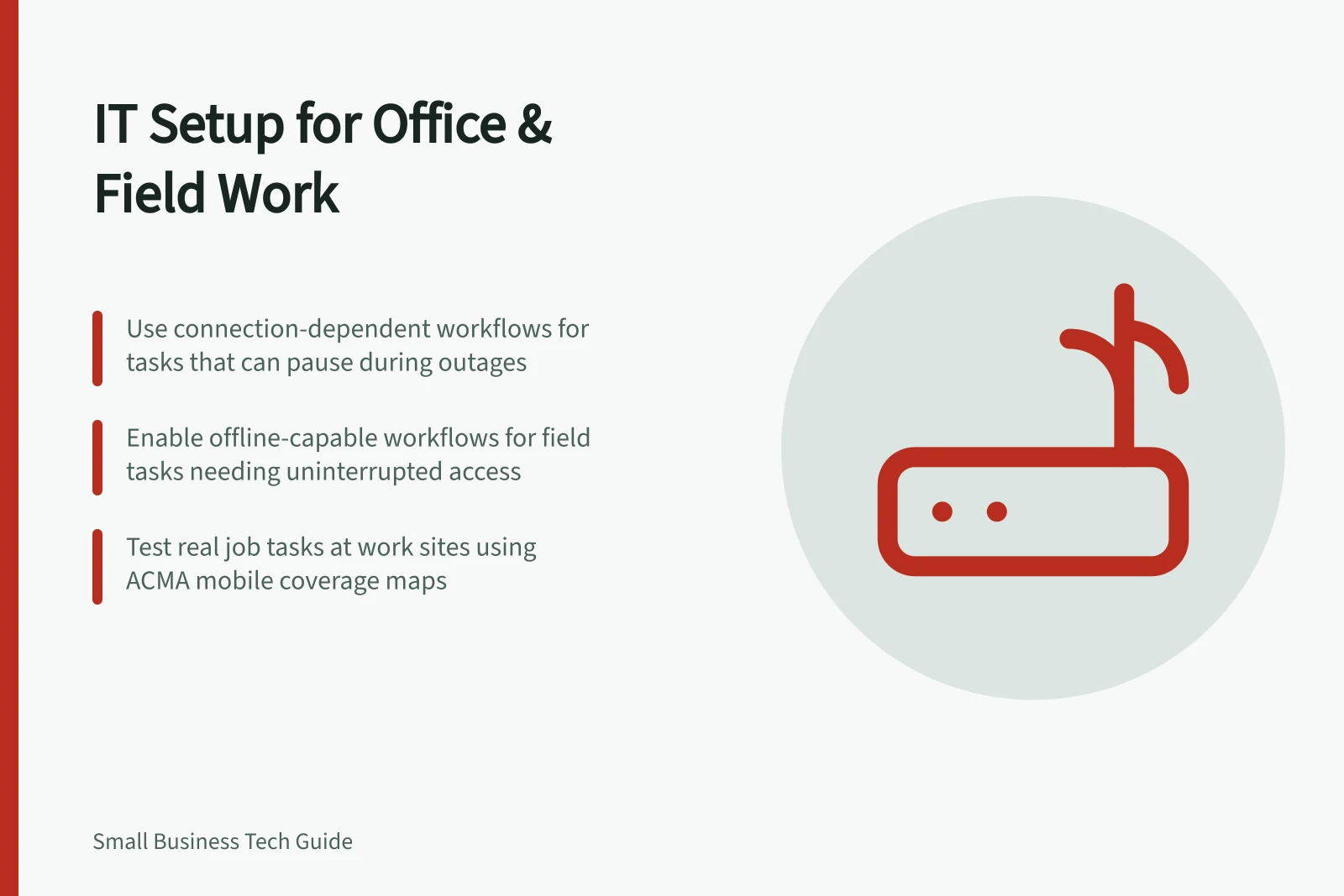
Choose how job information will move between the office and field, then match access and devices to each role. A connection-dependent workflow suits tasks that can pause when access drops; an offline-capable workflow suits selected tasks that must continue and upload later. Decide which tasks need each approach before testing them at work locations.
Connection-dependent vs. offline-capable workflows
- Connection-dependent workflow
- Tasks pause when connectivity fails. Suitable for roles where delays are acceptable.
- Offline-capable workflow
- Tasks continue without internet; updates sync later. Ideal for uninterrupted field work.
Trace one job across both locations
Follow a job from booking to completion. Identify where the office creates it, what the worker must see on site, what they may change and when the office needs the update. Record whether the field task involves a form, photo, customer signature, file or call, and decide which system holds the agreed record and which roles may access it.
For a connection-dependent workflow, identify which steps stop if the field connection is unavailable. For an offline-capable workflow, choose the task that must continue and ask the supplier to demonstrate that exact task offline and its later upload. Check what happens if two people change the same record.
Choose devices and access by role
For an office role, check required applications, shared records and equipment that stays at the desk. For a field role, check on-site tasks, device handling, charging, access to customer information and how a lost device will be reported. A standard device for everyone may simplify support, but it still needs to meet each role’s tasks.
Choose whether field devices are business-owned or employee-owned before granting access. If staff use their own devices, check the privacy and legal implications of managing or removing work data, and how access can be revoked when a worker leaves.
Use multi-factor authentication where available, keep devices updated and give staff an approved way to move records. Decide backup arrangements separately.
Business-owned vs. employee-owned devices
- Business-owned devicesEasier to manage security, enforce policies, and remotely wipe data. Simpler compliance with ATO and ACMA rules.
- Employee-owned devices (BYOD)May reduce upfront costs but increases privacy risks. Requires clear agreements on data access and removal upon departure.
Check connections where work happens
List the sites and routes that matter, then compare candidate mobile coverage maps. In Australia, the ACMA’s new telco transparency rules are now in force. A map helps shortlist options; it does not verify reception inside a particular building or how a work application will perform.
Where practical, try the proposed connection during a normal task at important locations. Choose a representative field task, such as opening a job record and completing a form, photo, customer signature, file or call. Treat the check as successful only if the required task works and the office receives the resulting update.
Decide which tasks stop if office internet or a field connection is unavailable. Set a temporary route, such as taking a request through an agreed alternative channel and entering it into the approved system when access returns. Protect customer information during that hand-off and assign someone to reconcile outstanding work.
Before wider rollout, have an office user and a field user complete a representative job together. Check permissions, the latest record, any offline step and the hand-off. Record gaps, correct them and repeat the task.
Pre-rollout validation checklist
- Test real-world connection at key sitesUse representative tasks like opening a job record and submitting a form with photo.
- Verify successful upload to office systemEnsure completed records appear correctly in the central system after reconnection.
- Confirm backup route for lost connectivityAgree on an alternative method (e.g., SMS or email) to hand off incomplete work.
- Reconcile outstanding work post-recoveryAssign someone to ensure all delayed updates are entered into the system.
- Validate permissions and latest recordHave both office and field users complete a full job together to test access and sync.