Devices
Business phone and communication hardware
A business phone setup should make calls clear, easy to answer and resilient when an office connection fails. Start with how people work, then choose desk phones …
A business phone setup should make calls clear and easy to answer, and stay resilient when the office connection fails. Start with how people work, then choose among IP desk phones, cordless DECT handsets, conference phones, headsets and supported calling clients. Check each device against the service, network connection and power arrangements.
Map the calls before choosing devices
List reception, sales, field and support roles. Note who needs a shared number, a physical handset, hands-free work, call transfer or mobility.
A receptionist handling frequent calls may value dedicated controls; a colleague who moves between home and office may prefer an app and headset. Ask the provider which phones and apps work with its service, and which features require specific licences or provisioning.
| Situation | Check before buying |
|---|---|
| Busy front desk | Can staff answer, hold and transfer calls without hunting through menus? |
| Shared desks | Is sign-in practical and are personal call details removed at sign-out? |
| Computer calling | Do headsets, microphones and notifications work reliably on the managed devices? |
| Outage | Which numbers and routes still work if office power or internet fails? |
Request a configuration list for the exact service you will use. Check that it names each handset, headset and calling client, along with any provisioning requirements.
Yealink’s range includes IP desk phones, DECT phones and conference phones; examples include SIP-T31P (dual-line), SIP-T30P (single-line), W79P Pro and CP965. The CP965 is listed for medium to large rooms, and features vary by model, so confirm the exact handset against the service.
Grandstream and Yealink offer IP phones, with Ethernet, PoE and Wi-Fi available on selected models. Check the actual model’s connection and power requirements, and confirm the office can support them before ordering.
IP phones support SIP/VoIP on compatible models, and the platform, SIP configuration and provisioning process matter. 3CX lists current Yealink ranges as preferred, while MaxoTel auto-provisions Yealink and Grandstream GRP phones; older or unsupported models may need manual setup.
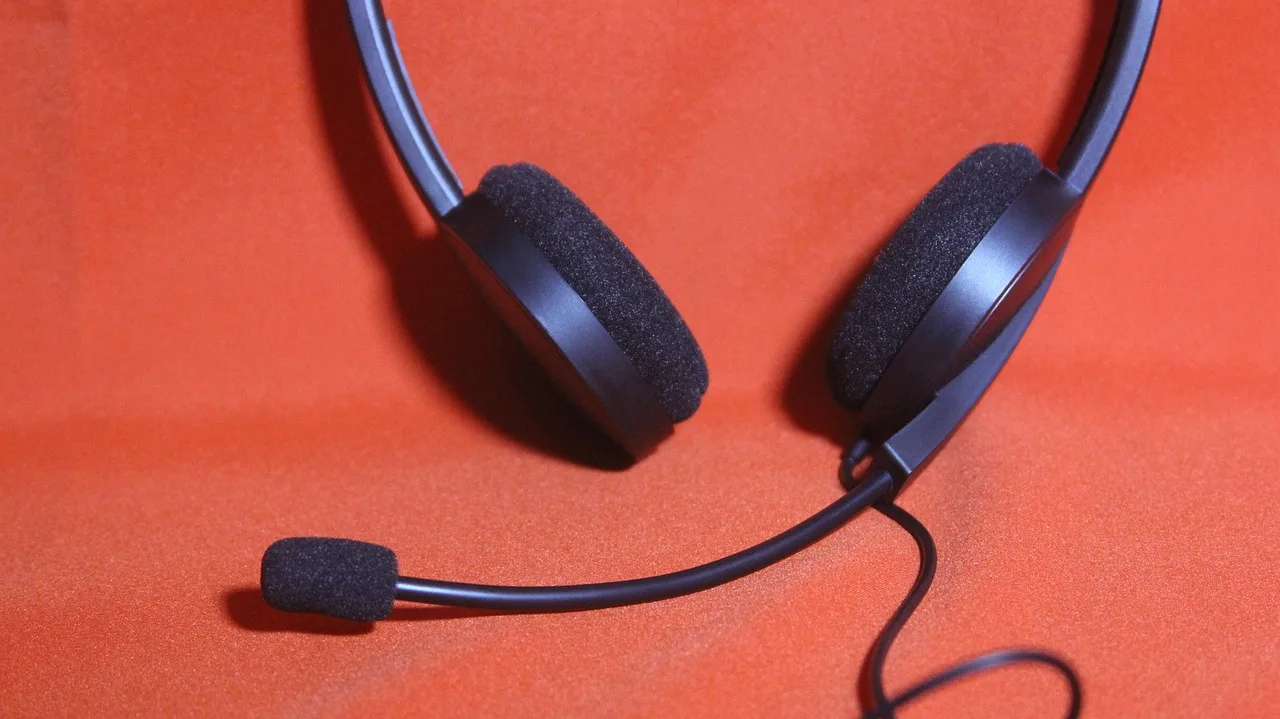
For hands-free roles, include a headset and check that the selected handset supports it; headset support varies by model. For Microsoft Teams, account for client types and versions, and check Zoom Phone’s supported phone-device list before selecting hardware.
Zoom Phone’s hardware guidance requires devices to support SHA256 certificates and 2048 RSA key encryption, and to receive security updates before provisioning. Confirm the exact device and service requirements with your provider.
Ordering phone services on the nbn access network
nbn is a wholesaler and does not sell directly to the public. To connect a business phone service, contact a service provider; it arranges the connection and can advise on available plans.
Check the business address to find when the nbn broadband access network is available. If it is not yet available, register for updates. The provider can also advise on connecting other important business services such as EFTPOS, fax machines or security alarm systems.
If affected existing landline phone and internet services must move, nbn says you have 18 months after confirmation to switch before the existing network is switched off. Ask the provider to confirm it will retain your phone number; keeping a special business number may cost extra.
nbn Business Connectivity and Transition Facts
- nbn Access Network Availability
- Check business address via nbnco.com.au
- Transition Period After Confirmation
- 18 months to switch from legacy landline before network shutdown
- Number Retention
- Possible with provider confirmation; may incur extra cost for special business numbers
Test the working environment
Trial devices with real call tasks in a quiet room and at a noisy desk. Have intended users answer and transfer calls using the controls they will rely on, then try the planned headset and shared-number workflow.
Monitor the hardware in use
Microsoft Teams Call Quality Dashboard (CQD) helps administrators and helpdesk engineers monitor call and meeting quality. It assumes CQD is already set up and recommends downloading two curated templates.
CQD’s Devices category shows commonly used microphones and speakers and their impact on call quality, plus whether supporting audio, video, USB and Wi-Fi drivers are regularly patched. Its Clients category shows client types and versions and their impact on call quality and reliability; common problems include inconsistent or outdated clients and drivers, and unoptimised or built-in audio devices.
Plan failure routes
Confirm the provider’s forwarding and backup options before finalising hardware. Keep emergency-call arrangements in mind when choosing devices.
In this guide
- Choosing headsets for a busy officeChoose a headset for the length and setting of the call, not just its advertised noise-cancelling label. The user must hear clearly, the other person must …
- Testing call quality on the business network: a guideTest calls where they are made: reception, meeting rooms, home connections and busy Wi-Fi areas. A fast download result does not show whether a live conversation …
- Preparing a backup route when the phone service failsA backup route should tell customers where their calls go when the main service is unavailable and tell staff how to respond. Write the sequence before an outage; a …