IT Planning
Small business data storage
Decide where small business files belong, who can use them, how much space to allow and how important records can be recovered.
Choose storage by deciding where each important work record belongs, who needs it, how staff reach it and how it can be recovered. A shared location makes files easier to find only when people know which copy is current and who may change it.
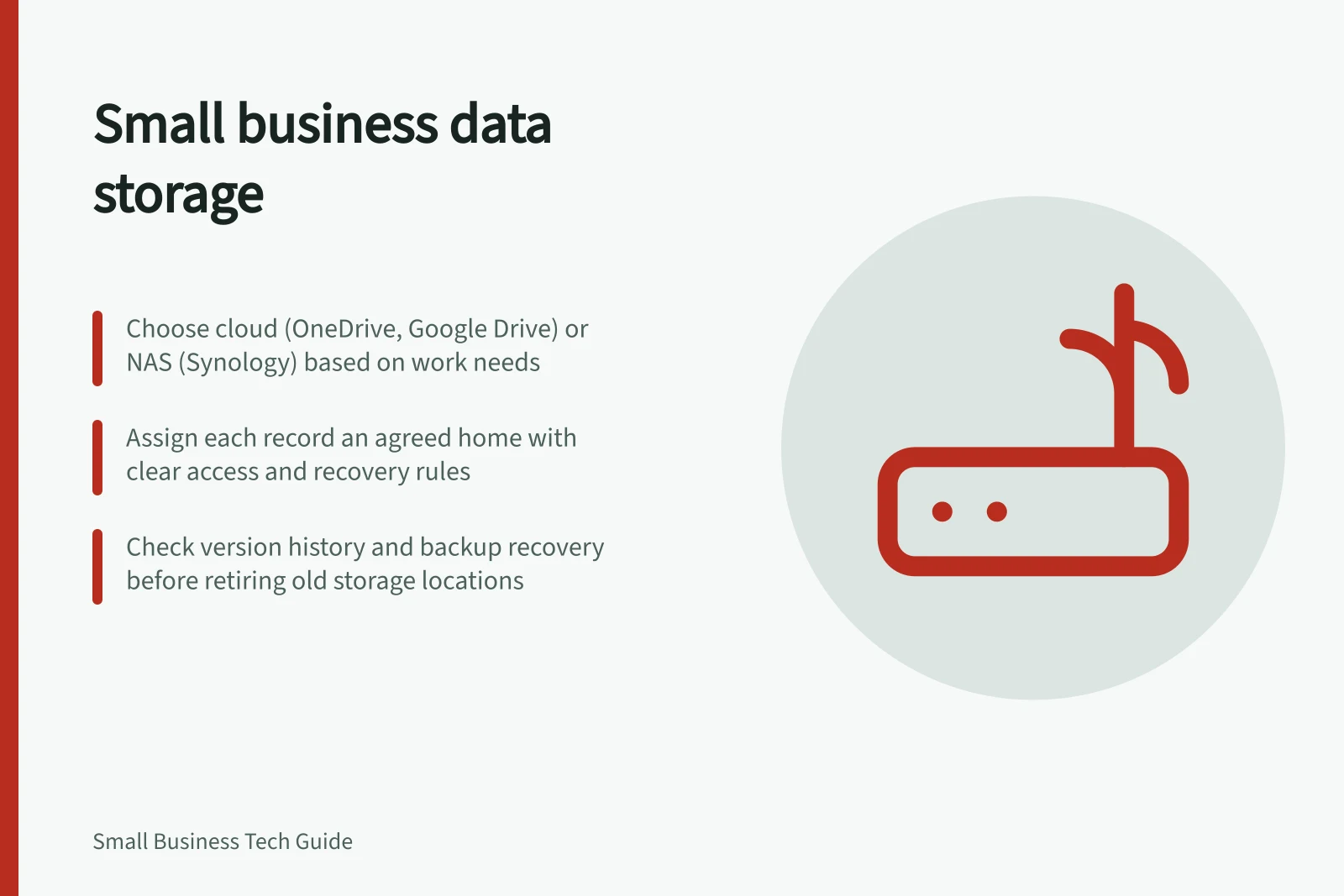
For cloud storage, examples include OneDrive, SharePoint, Google Drive and Dropbox; a Synology NAS is one named network-attached storage option. Choose by matching the arrangement to the work, not by brand alone.
Give each record an agreed home
Follow common tasks such as preparing a quote, updating a job and processing an invoice. Note the files each creates, where staff save them now and which version is final. Include scans, downloads and files on individual laptops.
Choose an approved home for each group of records. It might be a managed cloud workspace, a network-attached storage device or an application that keeps its own records. An accounting application such as QuickBooks may hold financial records, while related files need an agreed home too.
Record who administers each location. For Australian context, consult business.gov.au's record-keeping guidance and the Australian Cyber Security Centre's small-business guidance; check the requirements that apply to your records.
| Decision | Question to answer |
|---|---|
| Location | Where is the agreed working copy? |
| Access | Who needs to view, edit or manage it? |
| Availability | Which tasks need it away from the office or without a connection? |
| Capacity | How much space is used, and how is use changing? |
| Recovery | Which earlier or protected copy could be used after loss or an unwanted change? |
Key Questions When Choosing a Data Storage Solution
- Location: Where is the agreed working copy?Must be clearly defined and accessible to relevant staff
- Access: Who needs to view, edit or manage it?Assign roles based on job function; avoid over-permissioning
- Availability: Which tasks need it away from the office or without connection?Ensure offline access or cached sync where needed
- Capacity: How much space is used, and how is use changing?Monitor usage and plan for growth; compare cloud vs. NAS costs
- Recovery: Which earlier or protected copy could be used after loss or unwanted change?Confirm version history and deleted-item retention policies
Match the arrangement to the work
A managed cloud workspace may suit people working across locations. OneDrive or SharePoint may fit a business using Microsoft 365; Google Drive may fit a team working in Gmail, Google Docs, Google Sheets and Google Slides. Dropbox is an option when the priority is file sync, large-file sharing and simple folders.
A network-attached storage device can provide shared files under the business’s control. Synology’s NAS Selector recommends a NAS server based on selected requirements and includes a home or small office user option. The Australian Cyber Security Centre publishes guidance on securing a NAS device.
A laptop folder can be useful during work without becoming the only home of a record. Keep the agreed working copy where colleagues who need it can reach it.
Ask a prospective supplier to show two authorised people finding the current file and making their permitted changes. Check what happens when one device is unavailable, a connection drops or two people edit around the same time. These behaviours depend on the product and its configuration.
Cloud Storage Options for Australian Small Businesses
- Service
- OneDrive
- Access Control
- Granular permissions via Microsoft Entra ID
- Compliance
- Meets Australian privacy standards when configured correctly
- Service
- Google Drive
- Best for
- Teams using Gmail, Docs, Sheets and Slides
- Access Control
- User-based sharing with custom roles
- Compliance
- Supports ATO and OIC guidelines when using Google Workspace
- Service
- Dropbox
- Best for
- Simple file sync, large file sharing, cross-platform use
- Access Control
- Shared links with expiry and password protection
- Compliance
- Meets Australian data handling expectations with proper settings
- Service
- Synology NAS
- Best for
- Businesses wanting full control over data, local storage, and security
- Storage & Pricing
- Hardware cost + ongoing maintenance; scalable with drives
- Access Control
- Custom user accounts, roles, and network-level access
- Recovery Features
- Backups to external drives, cloud, or other NAS; versioning optional
- Compliance
- Full responsibility on business; must meet Privacy Act obligations
Set access and capacity
Identify who needs each group of records, then choose a location that supports appropriate access for the work. Assign someone to keep access arrangements current as staff roles change.
Record how much space the business’s current records use. Compare a cloud plan’s stated storage allowance and recurring price with a NAS’s usable space, purchase price and ongoing costs. Base the choice on current records and likely near-term additions, then recheck when the business’s needs change.
Decide how records will be recovered
Synchronisation can carry a deletion or unwanted edit to another device. Check whether the chosen service offers version history and deleted-item recovery, who can retrieve items and how long they remain available under the plan and settings.
Arrange protected backups for records the business must recover. The detailed backup and restore process belongs in the business backup plan.
Before retiring an old location, transfer a representative set of files. Ask its owner and another authorised worker to find the current record and complete their permitted tasks. Check the new location, access, space used and recovery route. Give unresolved items an owner before moving the rest.
Australian Small Business Data Storage Guidelines
- Privacy Act 1988 – Handling of Personal InformationMust ensure reasonable steps to protect personal data
- Cyber Security Best Practice – NAS DevicesChange default passwords, enable encryption, update firmware regularly
- Recommended Backup FrequencyAt least daily for critical files; weekly for non-critical
In this guide
- Organising shared work files with clear permissionsBuild a useful shared-file structure, assign view and edit rights by role, and check inherited access before staff rely on it.
- Choosing storage capacity from actual file growthMeasure current file use, forecast growth over a useful period and check what a storage plan counts before choosing capacity.
- Preventing important records from living only on one laptopFind laptop-only work records, move them into an approved business location and check that another authorised worker can use them.
- Reviewing external file-sharing linksCheck who can use externally shared files, what each link permits and which access should be narrowed or removed.