Office Networks
Part of Small business data storage
Reviewing external file-sharing links
Check who can use externally shared files, what each link permits and which access should be narrowed or removed.
Review external sharing by checking the item, every route an outside person may use, the permission granted and whether the work still needs that access. Narrow or remove access with no remaining purpose, then verify what remains.
Establish the intended access
Ask each file owner which customer, supplier or adviser needs a document and what they must do with it. Viewing a finished quote differs from editing a working design. Record the item, intended recipient, task, permission and expected end point.
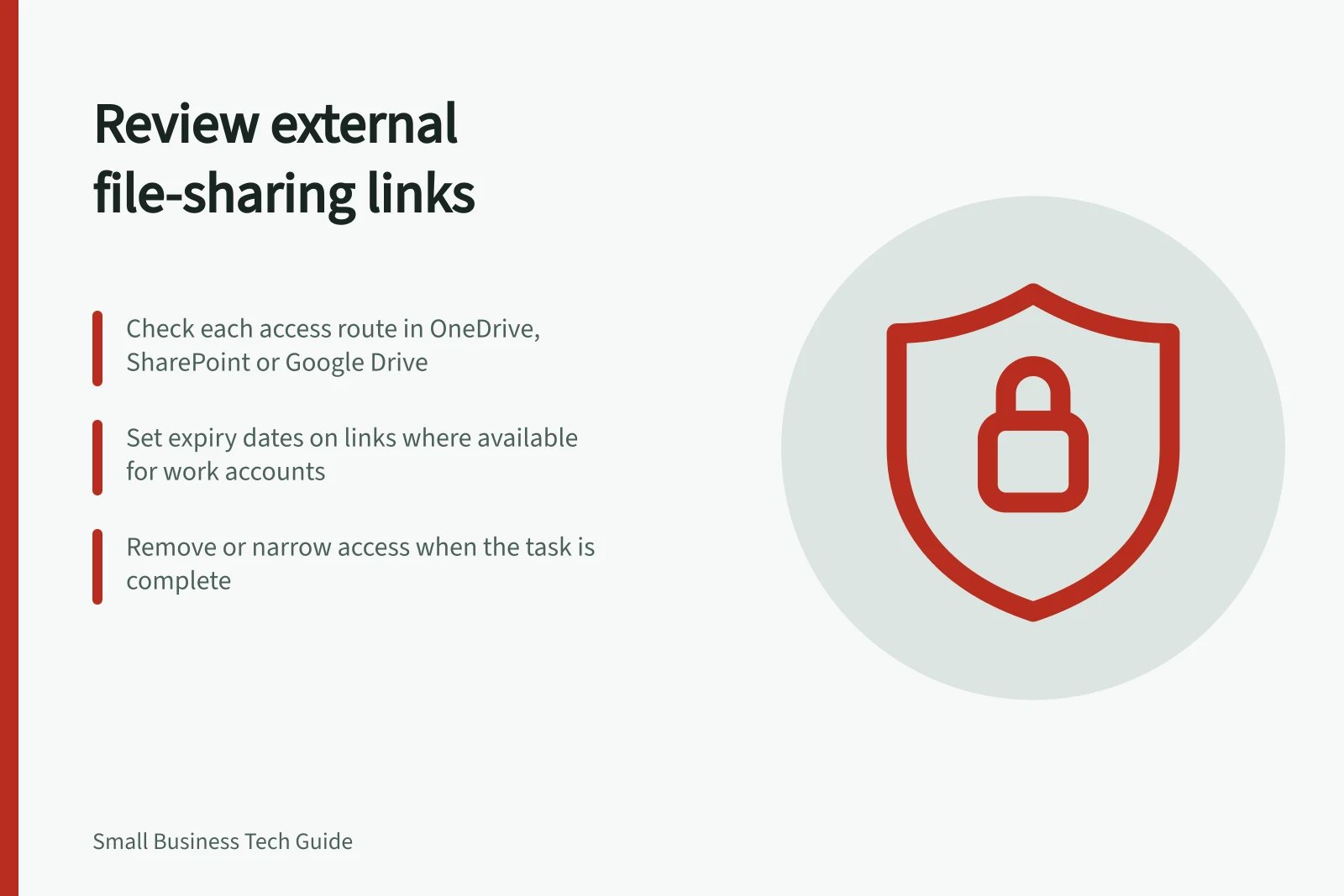
Inspect named invitations, links that anyone who holds them can use, and access through a parent folder, group or site. In OneDrive and SharePoint, the Manage Access panel can show people, groups and links for an item. For Google Drive, review its sharing settings.
What a reviewer can see or change depends on their account and the organisation’s settings.
External Sharing Options in Microsoft OneDrive & Google Drive
- Sharing MethodMicrosoft OneDrive / SharePoint
- Named Person AccessYes – can be restricted to specific individuals
- Link-Based AccessYes – can be set to view, edit, or comment; expiry dates available for work accounts
- Expiry DatesAvailable when creating links; may vary between personal and business accounts
- Google Drive EquivalentSimilar options but accessed via 'Share' settings in Drive
- Admin ControlCan restrict sharing policies at organisation level (admin console)
Check the effective permission
For each outside recipient, ask:
- Does the share reach only the intended file, or a folder?
- Is access limited to named people, or can anyone holding the link use it?
- Can the person view, comment or edit, and which action is needed?
- Is there another route through a parent location, group or separate invitation?
- If an expiry is needed, is it available for this account, item and link type?
A named-person link does not remove access the recipient already has by another route. Deleting one link may likewise leave direct or inherited access. Check the remaining routes before treating a change as complete.
Microsoft says an expiry date can be set when creating a link. The controls shown can differ between personal and work or school accounts.
Key Facts on External File Sharing Controls
- Access TypeNamed person links or public links
- Edit Permission LimitationCannot change existing link from view to edit – must delete and recreate
- Inherited Access RiskRemoving a link does not remove access via parent folder or group
- Revocation ImpactStops future access but cannot recall copies already downloaded or shared
Close access deliberately
If the work has finished, remove the relevant link or invitation through the service’s controls. If access is still needed, narrow the audience, item and permission where the service allows it.
For Microsoft sharing links, you cannot switch an existing link between edit and view. Delete it and create a new link with the required permission. Before changing a folder-level share, check whether other legitimate work depends on it. Record the owner, decision and any route still open.
Revoking a link stops future use through that route. It cannot recall a copy already downloaded or passed to someone else. If a document may have spread beyond its intended recipients, use the business’s information-incident process; link removal alone does not show the information is contained.
Assign an owner and review point to each continuing external share. A short record of item, party, purpose, access route, permission, decision and date makes the next review easier. Recheck when a project ends, a supplier changes or a sensitive file moves.