IT Planning
Small office networking
Plan a small office network around daily work, wired and Wi-Fi coverage, visitor access and clear support responsibilities.
Plan the network around the work it must support. List staff devices and services, decide where wired and wireless connections are needed, set access boundaries, and test the finished setup during normal work.
Network Planning Workflow for Small Offices
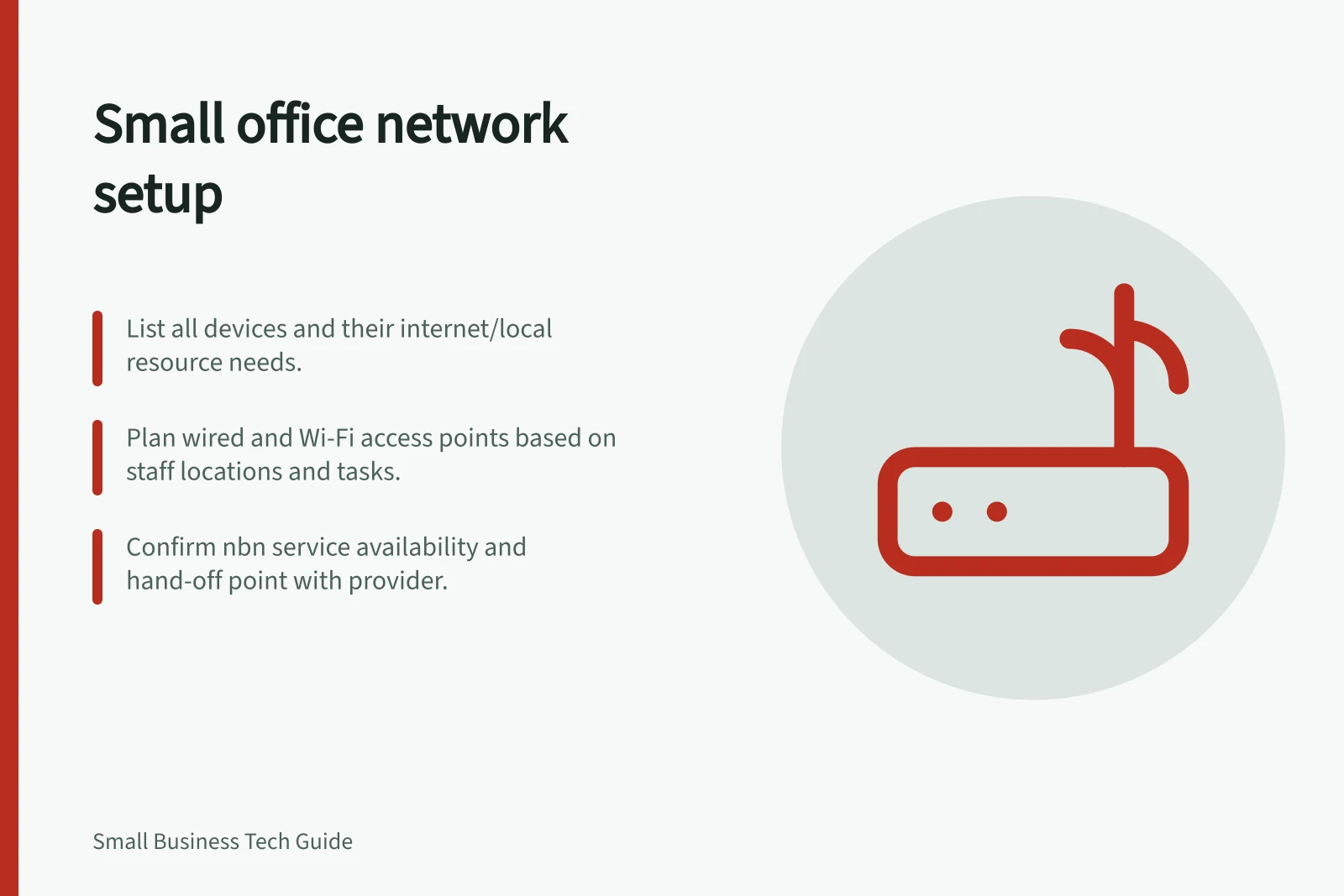
- Map work and devicesList all staff locations, connected devices (computers, printers, payment terminals), and their access needs.
- Assess connectivity demandsEvaluate upload and download requirements, especially for cloud apps, video calls, and file sharing.
- Choose connection types and equipmentSelect wired or wireless options based on device stability and mobility needs; plan cabling and access-point placement.
- Confirm NBN service availabilityVerify access technology at the premises (e.g., FTTP) and confirm upgrade eligibility where applicable.
- Set access boundaries and securityUse guest networks, strong encryption, and segmented access to protect business systems.
- Test and assign ownershipValidate performance under real conditions and appoint a network owner for ongoing management.
Map the work
List staff locations and networked devices, including computers, printers, payment equipment, phones and supplier-managed equipment. For each device, record whether it needs the internet, a local resource or both. Note tasks that cannot tolerate frequent interruptions.
Sketch the path from the internet connection through the router, switches and Wi-Fi access points to important devices. Label the equipment and who administers it. The sketch should help someone trace a fault or assess a proposed change.
| Decision | Question to settle |
|---|---|
| Internet service | Which tasks involve uploads, downloads or live communication, and when do they overlap? |
| Wired connections | Which fixed devices need a cable connection and an available port? |
| Wi-Fi | Where do staff and visitors need to connect? |
| Access | Which devices need business resources, and which need internet access only? |
| Support | Who changes settings, updates equipment and contacts suppliers? |
For equipment supplied or managed by another organisation, record the service contact and the device’s place in the connection path. This identifies which party to involve when a proposed network change affects that equipment.
Allow for shared demand
Plan for concurrent demand from multiple users and applications, including cloud-based work and video calls.
Consider upload demand as well as downloads. High-definition video calls, security-camera footage, file sharing and cloud collaboration can depend on upload capacity.
Choose connections and equipment
Check which internet services can be supplied at the exact premises. Compare the retail offers against the office’s work, including uploads and simultaneous use. Advertised download speed alone cannot establish how a task will perform; the access technology, provider, equipment and other active devices also matter.
Use wired connections where they suit fixed equipment. Plan cable routes, ports and access-point locations before installation, and label what each port serves. Agree the installation scope with the installer where cabling work is needed.
For Wi-Fi, mark the work areas on a floor plan, then check candidate access-point locations with the devices and tasks staff use. Walls, interference and client devices can affect coverage. A floor plan is a starting point; the connection still needs checking in the rooms where people work, including busy rooms.
Trace the internet hand-off
Record where the external service enters the office network, the location of the network termination device, and the next device in the path so the service hand-off is clear.
The NBN uses different access technologies, and the technology available at an address affects which services can be supplied. nbn Business Plans are available on FTTP, with additional options on other technologies; selected businesses on FTTN or FTTC may be able to upgrade to FTTP with those plans. Confirm availability for the premises with the provider before finalising the network layout.
NBN Business Plans by Access Technology
- FTTP (Fibre to the Premises)Available across most business premises; supports high-speed, low-latency connections ideal for cloud-based work and video conferencing.
- FTTC (Fibre to the Curb)Common in urban areas; limited by copper lines from curb to office; upload speeds may be lower than FTTP.
- FTTN (Fibre to the Node)Uses existing copper infrastructure; performance varies based on distance from node; suitable for basic internet needs.
- Hybrid Fibre Coaxial (HFC)Used in select regions; bandwidth shared among users; best for moderate demand scenarios.
Set access boundaries
Give business devices the access their tasks require. If the equipment offers guest Wi-Fi, use it for visitors and check its actual restrictions. A separate network name does not establish that guests are blocked from business devices, wired resources or router settings.
Protect network administration as well. Change default administrator credentials, restrict remote management that is not needed, and keep supported firmware updated. Use Wi-Fi encryption compatible with the required devices, and check the manufacturer’s support status for each network device.
Check the setup and assign an owner
Ask staff to complete representative tasks from their usual locations, such as opening an approved shared resource, printing, joining a call and uploading a normal work file. Repeat important tasks during a busy period. Check a guest device for its intended internet access and for unintended access to business resources. Record the device, location, task and result.
Keep the network sketch, equipment details, retail service terms and support contacts in an approved place. Assign an owner for updates and access changes. Review the setup when staff numbers, room use, devices or essential applications change.
Small Office Network Setup Verification
- Test staff tasks from usual locationsVerify access to shared resources, printing, video calls, and file uploads during peak hours.
- Check guest Wi-Fi isolationEnsure visitors cannot access internal devices or router settings, even if using a separate network name.
- Confirm firmware updates and admin securityChange default credentials, disable unused remote access, and ensure all devices run supported firmware.
- Document network sketch and support contactsKeep records of equipment layout, service terms, and responsible parties for future changes.
In this guide
- Planning Wi-Fi Coverage for the Workspace: Survey & CheckMap where staff work, choose candidate access-point locations and check Wi-Fi coverage and busy-room capacity using real tasks.
- Separating guest and business network accessSet visitor access rules, check what guest devices can reach and keep business resources and network administration restricted.
- Choosing internet service from operational needsCompare Australian office internet plans using real upload and download work, address availability, retail support terms and complete costs.