Account Security
Part of Small business account security
Setting up multi-factor authentication for work accounts
Choose a supported MFA method, enrol each work-account user, check a fresh sign-in and protect the recovery route.
Set up multi-factor authentication (MFA) one service and user at a time. Check which methods the account permits, register an approved method, try a fresh sign-in and secure a recovery route. Start with work email, financial services and administrator accounts. Menus and available methods vary by provider and organisation policy.
Key Statistics on MFA Adoption and Security
- Recommended MFA method by Australian Cyber Security CentrePasskeys or authenticator apps
- Risk level of SMS-based MFAHigh – vulnerable to SIM-swapping and interception
Check the account and choose a method
List the accounts and people to enrol. A service may call MFA two-factor authentication or two-step verification. For centrally managed accounts, check which methods the administrator has enabled; a worker may not be able to select every method the provider advertises.
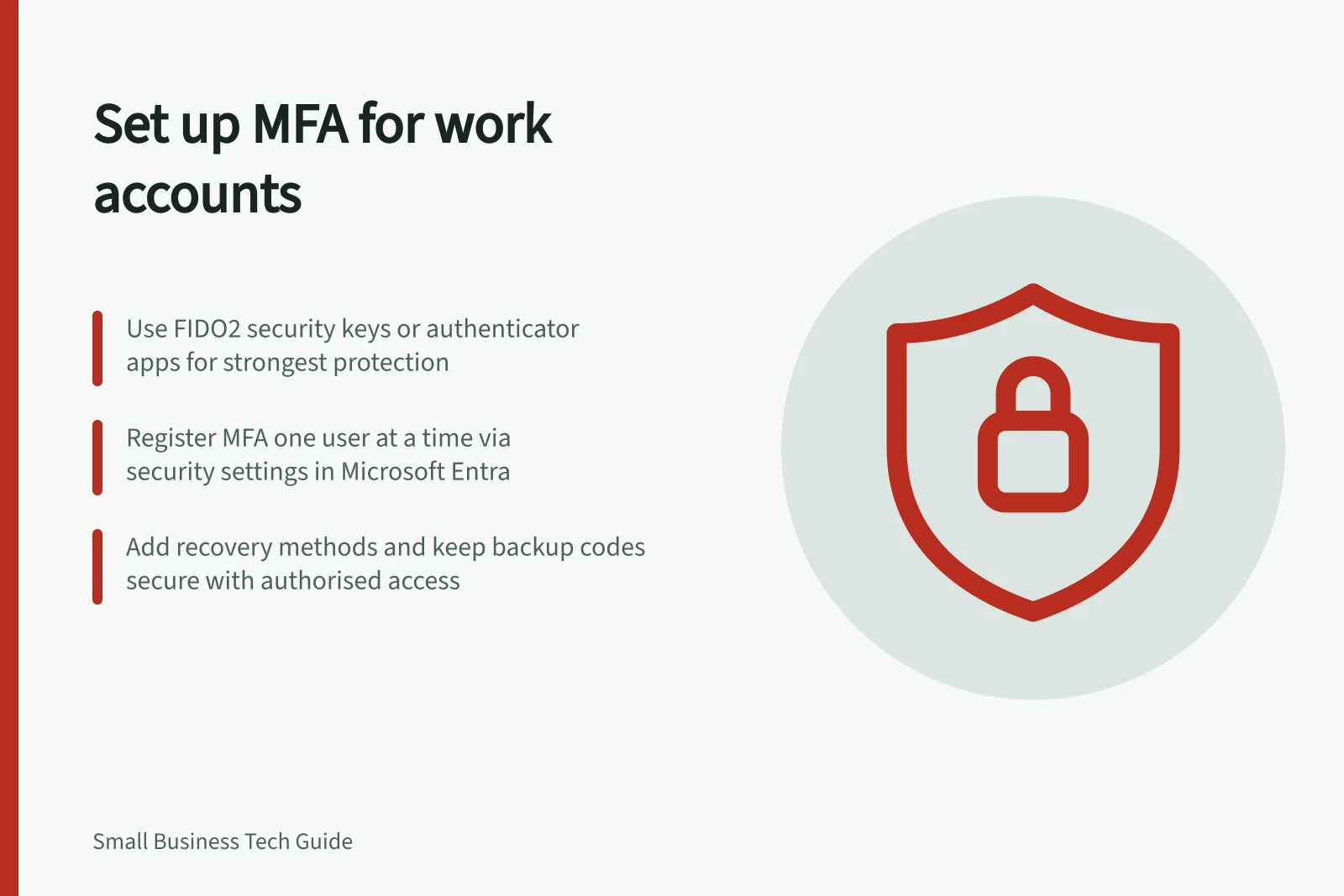
A supported passkey, including one held on a FIDO2 security key, can resist phishing. An authenticator app is another option where available. SMS or email codes may be offered, but are more vulnerable to some attacks.
A security key used only to display a one-time code is not equivalent to FIDO2 passkey sign-in. Confirm compatibility and policy before buying keys or choosing a rollout method.
MFA Methods: Security and Vulnerability Comparison
- FIDO2 Passkey (e.g., security key)
- Highly secure; resists phishing attacks. Supported by Microsoft Entra and Cyber.gov.au.
- Authenticator App (e.g., Google Authenticator)
- Moderate security; better than SMS but vulnerable if device is compromised.
- SMS or Email Codes
- Low security; susceptible to SIM-swapping and interception.
- One-Time Code on a Basic Security Key
- Not equivalent to FIDO2 passkey; limited protection against phishing.
Pros and Cons of Common MFA Methods
- FIDO2 PasskeyPros: Phishing-resistant, seamless login. Cons: Requires compatible devices and setup.
- Authenticator AppPros: No network dependency after setup. Cons: Device loss can lock users out.
- SMS-Based CodesPros: Widely accessible. Cons: High risk of interception; not recommended for sensitive accounts.
Register and check each user
- Open the service through its usual app or address and sign in. Find its security or sign-in settings; avoid an unexpected message’s sign-in link.
- Select a method the service and business permit, then follow that service’s registration instructions. An authenticator-app setup may involve linking the app and confirming a code.
- Sign out and complete a fresh sign-in with the new method. Check that the person can still do their work; an existing browser session may conceal an enrolment problem.
- Record the account, user, enrolled method, check result and recovery owner. Keep codes and registration secrets out of an ordinary access spreadsheet.
For Microsoft Entra accounts, combined registration lets users register once and get the benefits of both multifactor authentication and self-service password reset. Users may also manage permitted methods from Security info. That route applies to Microsoft Entra, and the methods shown depend on the organisation's settings.
Protect the recovery route
Before a worker replaces a phone, check the service's procedure for transferring or registering a new authenticator. Add a recovery method or backup codes if offered, and store codes so only authorised people can reach them. Keep recovery email addresses and phone numbers current and protected. Procedures for lost methods and backup codes vary by service.
Agree who can verify a user and arrange recovery for an important administrator account. Record any recovery issue before treating enrolment as complete. Staff should reject unexpected approval prompts and never give a sign-in code to a caller or message sender. MFA adds a barrier, but an account can still be compromised.
If a service offers no MFA option, use a strong, unique password or passphrase and ask the supplier whether a stronger sign-in method is available.