Support
Part of Business software installation and licences
Removing unused software from business devices
Check work files and dependencies before uninstalling unused business software, then verify the device and billing separately.
Before you uninstall an application, check whether it holds work, supports another tool, or is still needed for an occasional task. Use the approved removal method, confirm the device's normal tasks still work, and review any paid access or subscription separately.
Safe removal workflow for unused business software
- Check need and ownershipConfirm the application is not required and ask the device user and work owner before deciding.
- Protect work and dependenciesLocate files, settings and templates; check exports and any dependent applications, printers, scanners or device services.
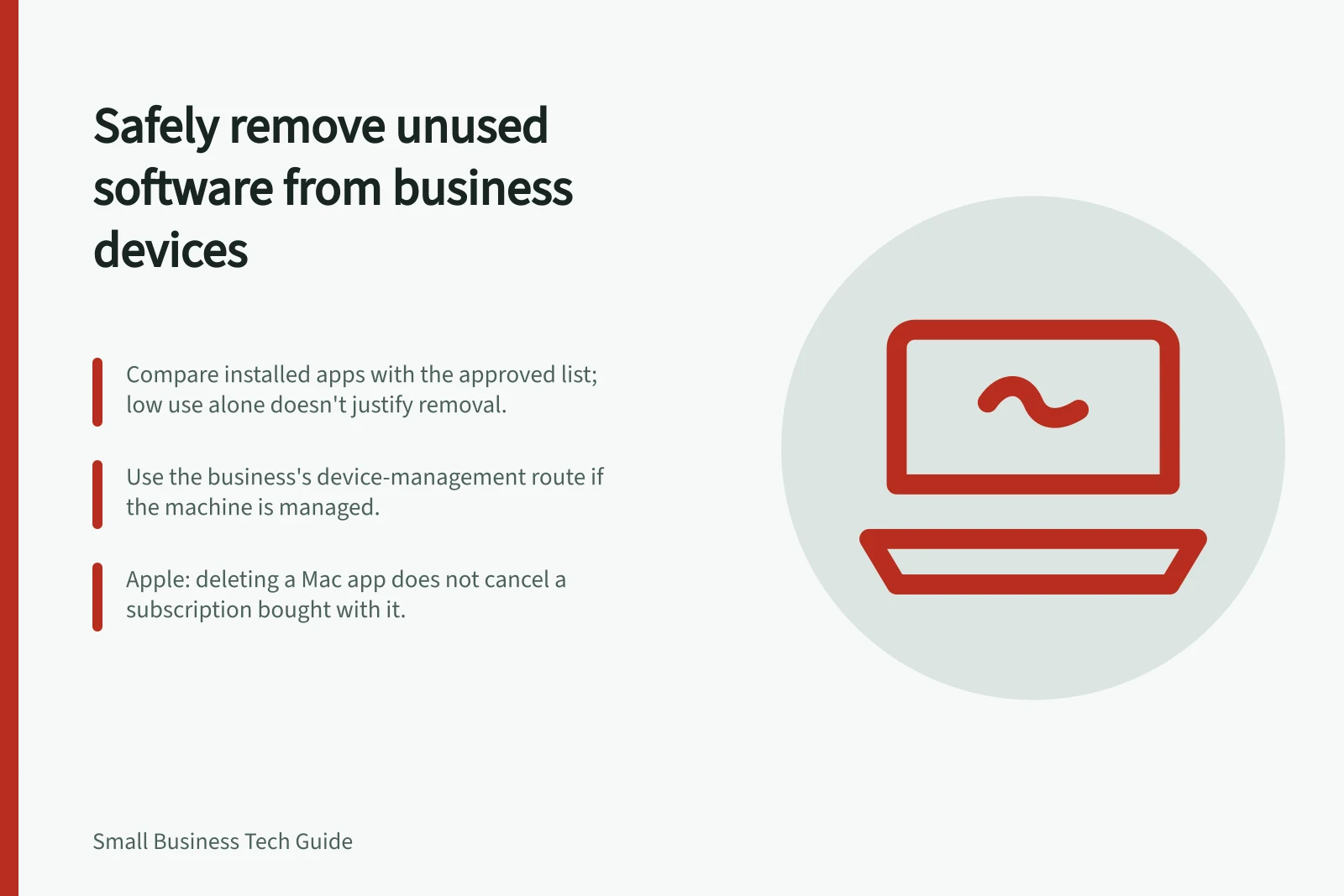
- Use the approved removal methodUse the business's device-management route if the machine is managed, otherwise follow the platform's documented removal method.
- Restart and testRestart if instructed, then ask the worker to repeat tasks that may depend on the application.
- Check access and billingAsk the account or billing owner to check access and charges separately from the device removal.
Decide whether it can go
Compare installed applications with the approved software list. Ask the device user and work owner about unfamiliar items, old project tools and browser extensions. Low use alone is not enough: a specialist viewer or seasonal application may still be needed.
Record the device, application, reason for removal, owner and decision. Check whether the application is supported and updated while it remains in use. Do not treat an unfamiliar component as safe to delete just because it appears unnecessary.
Before removing an application: pre-removal checks
- Application appears on the approved software list, or the work owner confirms removal
- Device user and work owner have been asked about unfamiliar items, old project tools and browser extensions
- Low use alone is not treated as enough; specialist viewers or seasonal applications are assessed for occasional need
- Device, application, reason for removal, owner and decision are recorded
- Work files, settings and templates are located and accessible to an authorised person
- Any required export is checked for contents and how it will be used
- Dependencies such as another application, printer, scanner or device service are checked
- Drivers, system components and security tools are left to the appropriate support owner
- If the purpose or removal effect is uncertain, the publisher or support provider is asked before proceeding
Protect work and dependencies
Find out where the application keeps files, settings and templates. Confirm that an authorised person can open records the business needs to retain.
If an export is required, check its contents and how it will be used. Check whether another application, printer, scanner or device service depends on the software.
Leave drivers, system components and security tools to the appropriate support owner. If the purpose or removal effect is uncertain, ask the publisher or support provider before proceeding.
Uninstall and check the result
Use the business's device-management route if the machine is managed. Microsoft documents uninstalling Windows apps through Settings or, for some programs, Control Panel. On a Mac, Apple recommends using an app's own uninstaller when supplied because it may remove related login items and extensions.
Restart if instructed. Check that removal completed, then ask the worker to repeat the tasks that might depend on the application.
Record a failed uninstall or remaining extension for support. A removal command being sent does not prove it completed on the device.
Ask the account or billing owner to check access and charges. Apple notes that deleting a Mac app does not cancel a subscription purchased with it. A browser service may have no local installation at all. Record the uninstall result and any open access or billing action together.
Windows and Mac uninstall routes
- WindowsMicrosoft documents uninstalling apps through Settings or, for some programs, Control Panel.
- MacApple recommends using an app's own uninstaller when supplied because it may remove related login items and extensions.