Support
Part of Device setup and onboarding
Installing approved software without unnecessary extras
Choose software by role, inspect installer extras and verify what works on a new staff member’s device.
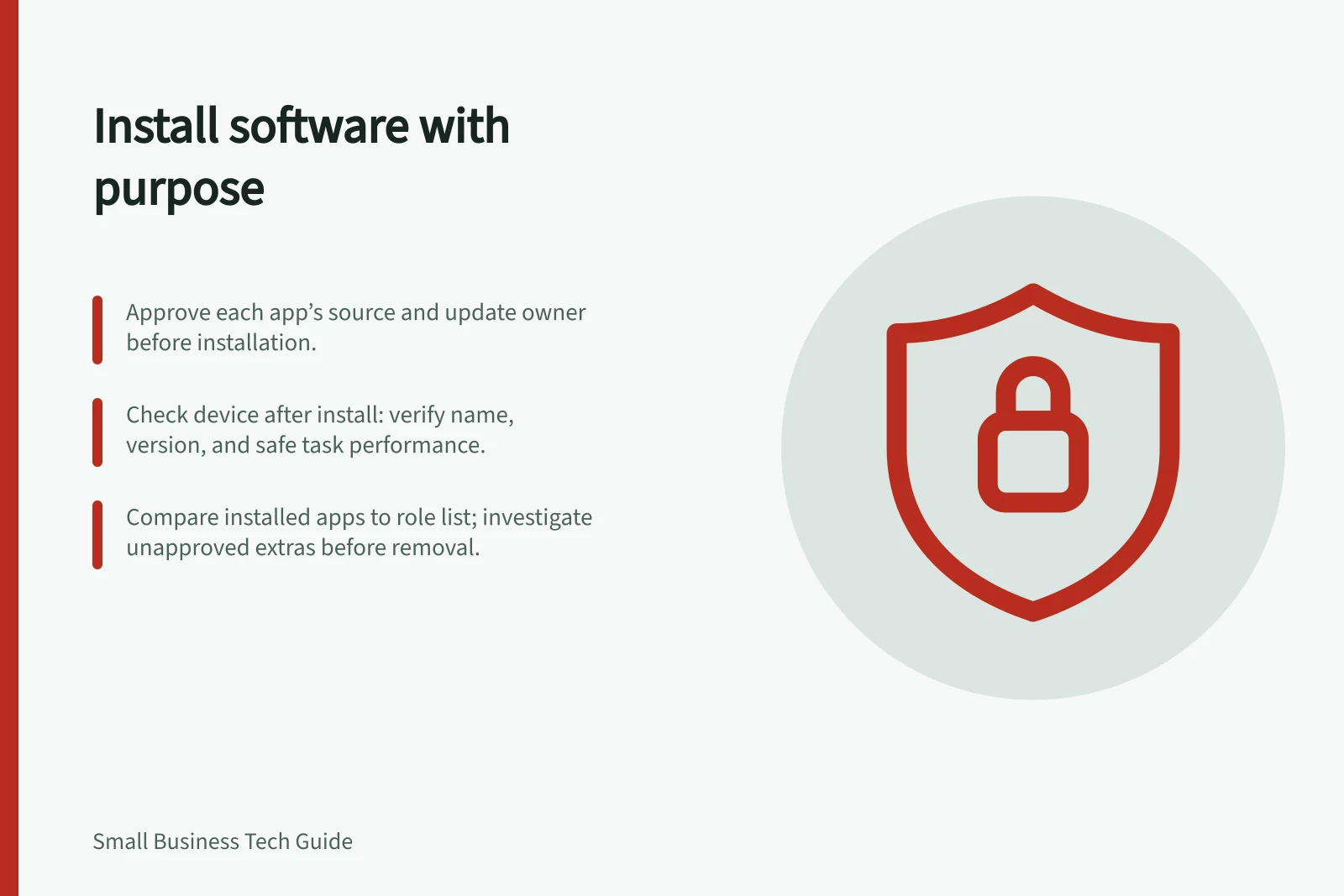
Begin with the applications a new worker needs for defined tasks. Approve each source and maintenance owner, install via the business's agreed route, then check the device. Trials, browser extensions and bundled utilities also need a reason to be present.
Decide what belongs
Make a short role list with the task each application enables. Require a named approval for specialist additions.
For each proposed tool, record its purpose, approver, trusted source, supported versions and update owner. Check paid access through the business's separate licence process where required.
Give staff one route to request a missing tool. An authorised preparer can use a managed catalogue or a verified supplier channel under the business's policy.
Inspect the installation
Read the installer choices. Decline optional browser changes, trials, utilities or account sign-ups that are not approved.
If an extra component is said to be required, ask what it does and check the main task before adding it to the standard setup. Do not remove an unfamiliar bundled component until the device maker or support owner confirms its role.
After installation, check the application name and version, open it under the worker's account and try a safe representative task. Confirm how updates will be applied. Record a failed installation or pending sign-in as pending, with an owner and next action.
Check for extras and review changes
Compare the device's installed software with the approved role list after setup and when the role changes. Investigate differences before removal, including possible data or workflow dependencies. Browser extensions and portable tools may need separate checks.
A management report can assist; check what its inventory collects. For example, Microsoft Intune app inventory for Windows devices requires a configured policy on eligible enrolled, Microsoft Entra joined devices.
It collects Win32 apps from Windows uninstall registry keys, including per-user keys, and Windows Store apps using the package manager API. Check the machine directly when an essential task or unexplained extra needs confirmation.
Key Metrics for Secure Software Deployment
- Software inventory sourceMicrosoft Intune app inventory (requires policy on enrolled, Microsoft Entra joined devices)
- Data collection methodWin32 apps from Windows uninstall registry keys (including per-user), Windows Store apps via package manager API
- Security guidance sourceCyber.gov.au – System hardening and application control